Showing posts with label Exchange. Show all posts

Tuesday, November 7, 2017

Exchange 2016 Hybrid Deploy Check - Username or Password Invalid

These days, it seems every Microsoft product comes with its own unique set of head scratchers. Microsoft Exchange Server is no exception to this. I was installing Exchange 2016 earlier today, to be used as a hybrid configuration server for Office 365 (no local mailboxes). I downloaded the self depackaging executable from Microsoft, and attempted to install it. If you currently have a hybrid configuration (which we did, with Exchange 2010), the Exchange 2016 installer will detect this and run some tests to verify that the Office 365 tenant is ready for Exchange 2016 (more info here: https://technet.microsoft.com/en-us/library/ms.exch.setup.hybridconfigurationstatuspage(v=exchg.160).aspx). You’ll be prompted for Office 365 credentials (the user must have the Organization Management role). Seems simple enough, right? Wrong.

After typing in the username and pasting the password into the password field, setup came back with an error message stating the username or password was wrong. I then clicked the back button, and it crashed. I ran through this process a few more times, all with the same outcome. I even rebooted the server, which (in my opinion) should never be the resolution to a software problem. I looked through setup logs and found no indication of what the problem could be…


It was on the fourth try that I typed in the password, and this seemed to work. I didn’t receive any error messages about the credentials being wrong. The Exchange setup seemed to continue on successfully. However, it then failed with a different error:


I again looked through the setup logs and found that this error happened anytime setup tried to run the “Get-OrganizationConfig” cmdlet. After troubleshooting for a little while, and no resolution in sight, I turned to Google. One of the posts I came across said that this is a bug in the Exchange installer, and to try and use the Cumulative Update installer instead. Apparently, with Exchange 2016, the Cumulative Update installer’s include all of the Exchange binaries, not just the updated binaries. I downloaded the installer for CU7 (all 6 gigabytes of it…) and successfully installed Exchange 2016. Hope this helps anyone out there struggling with this.

Tuesday, September 26, 2017

Auditing Exchange Online Transport Rule Use

I recently came across a transport rule being unnecessarily used in Exchange Online. The transport rule in question was used for DLP, and encrypted messages based on the content. It searched message bodies for strings of characters matching credit card numbers, SSN's, etc.  I was surprised to see that there was no way to easily audit transport rule usage with Powershell, so I checked the Exchange Control Panel. There is an option for auditing in each of the transport rules:


So, what does this checkbox actually do?

Enabling this checkbox will cause this rule to appear in Message Trace logs when it is applied to a message. 

Let's look at an example:

Here we have a transport rule in Exchange Online that appends "Outbound" to the subject line of all messages sent to external recipients:


After sending a message to an external recipient, we can see the rule working:


Let's take a look at the message trace:


We can see two entries in the message trace log. The first is for applying the transport rule, and the second entry is for setting the audit severity level. I haven't found a good explanation of the audit severity levels, other than you can filter by them when doing a message trace.

If you know of any other use for the audit severity levels, leave a comment below!

Monday, June 26, 2017

New Script: BulkAdd-SpamFilterWhitelist.ps1

This script is capable of adding a list of domains to an Exchange Online Spam Filter policy. It can be downloaded from TechNet or Github.

Github

TechNet

Tuesday, June 20, 2017

How to Permanently Remove Office 365 Users

After deleting a user in Office 365, their account is moved to a 'recycle bin' for 30 days. This allows the user account to be easily recovered. This can often cause issues when attempting to recreate a mailbox while a hybrid configuration is in place.

To permanently delete the user within Office 365, first delete the user in the Office 365 Admin Portal or using Powershell. Then, connect to your Azure Active Directory environment with Powershell using the "Connect-MsolService" cmdlet.


To see a list of user accounts currently in the recycle bin, run this cmdlet:


Then, to permanently delete all accounts in the recycle bin, run this cmdlet:


To remove a specific user, run this cmdlet:

Monday, June 12, 2017

"Access is denied" When Attempting to Delete a Dynamic Distribution Group

You may receive the error below when attempting to delete a dynamic distribution group.


To resolve this, open ADUC and show advanced features (Click View > Advanced Features). Then find the object for the dynamic distribution group and open the properties window. Browse to the "Object" tab and uncheck the "Protect object from accidental deletion" box. Wait for ADDS to replicate or force replication yourself. 


Go back to the ECP and you should be able to delete the group.

Monday, October 3, 2016

Exchange 2013: Error 0x80070070 While Adding DAG Member


Error: A server-side database availability group administrative operation failed. Error Failed to add or remove the Failover-Clustering feature. Error: The request to add or remove features on the specified server failed. A DISM session could not be opened. An error occurred accessing the temporary folder C:\Windows\TEMP\57ACE2DE-4CD2-4F5F-B7A0-93D867A89A12. Ensure that the path to the temporary folder exists and that you have Read/Write permissions on the folder. Error: 0x80070070


Solution: I was attempting to remotely add the DAG member from the ECP on my workstation. I logged into the server and found that the system drive was nearly full (<100MB free). Luckily this mailbox server was a virtual machine, and I was able to quickly expand the drive using VMM. After doing this I was able to successfully add the mailbox server to the DAG. 

Monday, September 7, 2015

Finding All Mailboxes with a Forwarding Address in Exchange 2003


Believe it or not, the MSP I work for still has a client who is using Exchange 2003 as their primary email service. Despite several attempts at convincing them of the power of Office 365, they refuse to migrate. Last week the CFO contacted me and requested we provide them with a report of all users who have their email forwarded to another mailbox. “Ok, no problem.” I said helpfully as the client informed me of their request (at the time I didn’t even think about them having Exchange 2003…). I figured I would just connect to their server and do some quick PowerShell magic, and that would be it. Quick and painless, right? Wrong.

I did the RDP dance and got connected to their server, and my jaw just about hit the floor when I couldn’t find the Exchange Management Shell! I asked around the office to see if any of the other guys could help, but no one knew what to do. However, after talking with one of the guys, I remembered that this is Active Directory we are dealing with. There are objects, and those objects have attributes. The mailboxes/user accounts are objects, and those objects have attributes. So what attribute is it that controls forwarding addresses? I manually found one of the users who had a forwarding address configured. Then I opened up Active Directory Users and Computers, opened up her account properties, and went to the Attribute Editor tab. I filtered for attributes that have values and was able to see the email address that her mail was forwarding to. This was the “altRecipient” attribute.

I then did an “Advanced” search in Active Directory Users and Computers for any objects that have the “altRecipient” attribute configured, like so:


This search showed me all of the mailboxes that have an alternate recipient (forwarding address) configured. Not sure if there is another way to obtain this information, but this is the way that worked for me. Hopefully this article is able to help someone in the same situation. 

Wednesday, August 12, 2015

Failed to Mount Exchange 2010 Database

Recently, one of my users’ came to me and said he was missing two months worth of email. This was just after migrating to Exchange Online. We were using Exchange 2010 with System Center DPM for backups.


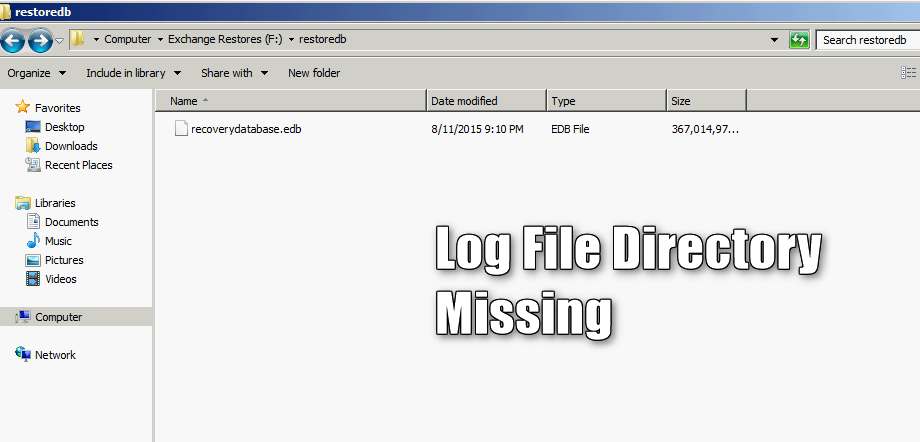
I restored the database that the users’ mailbox was on from a backup then copied it over to the Exchange server from the network share I restored it to. All was going well, until I tried to mount the darn thing.

I was getting this error and could not for the life of me decry-pt the meaning of it. There is obviously some type of IO issue/file not found. But what could it be?


I figured I’d better kick this one off with some basic troubleshooting. First, I checked the health of the database and made sure it was clean. Passed that test…


Then ran a repair on the database, to no avail.


After racking my brain for a good thirty minutes, and a few failed Google searches, I found the solution. It was so simple! I created the log file directory in the folder with the database, and voila, the database mounted without a single error!


I was able to see the ‘supposed’ location of the log file by opening the Exchange Management Shell and running the ‘Get-MailboxDatabase’ cmdlet, like so:
Get-MailBoxDatabase –Identity <Recovery DB Name> | FL Name, ServerName, EDBFilePath, LogFolderPath


I’m not sure why the database mounting process isn’t capable of creating the log file directory… I think Microsoft would have thought and planned for a situation like this. Hope this helps!